Absence management for Jira and Jira Service Management

Absence planning with automatic substitutes for Jira

Team members request time off from their personal settings, the approvers you configure decide, and while someone is away their open issues go to a substitute, in the projects you choose. When they are back, the app hands the work back.

Free trial through the Atlassian Marketplace. Billed through your Atlassian account.

Out of Office & Absence Planner · Team
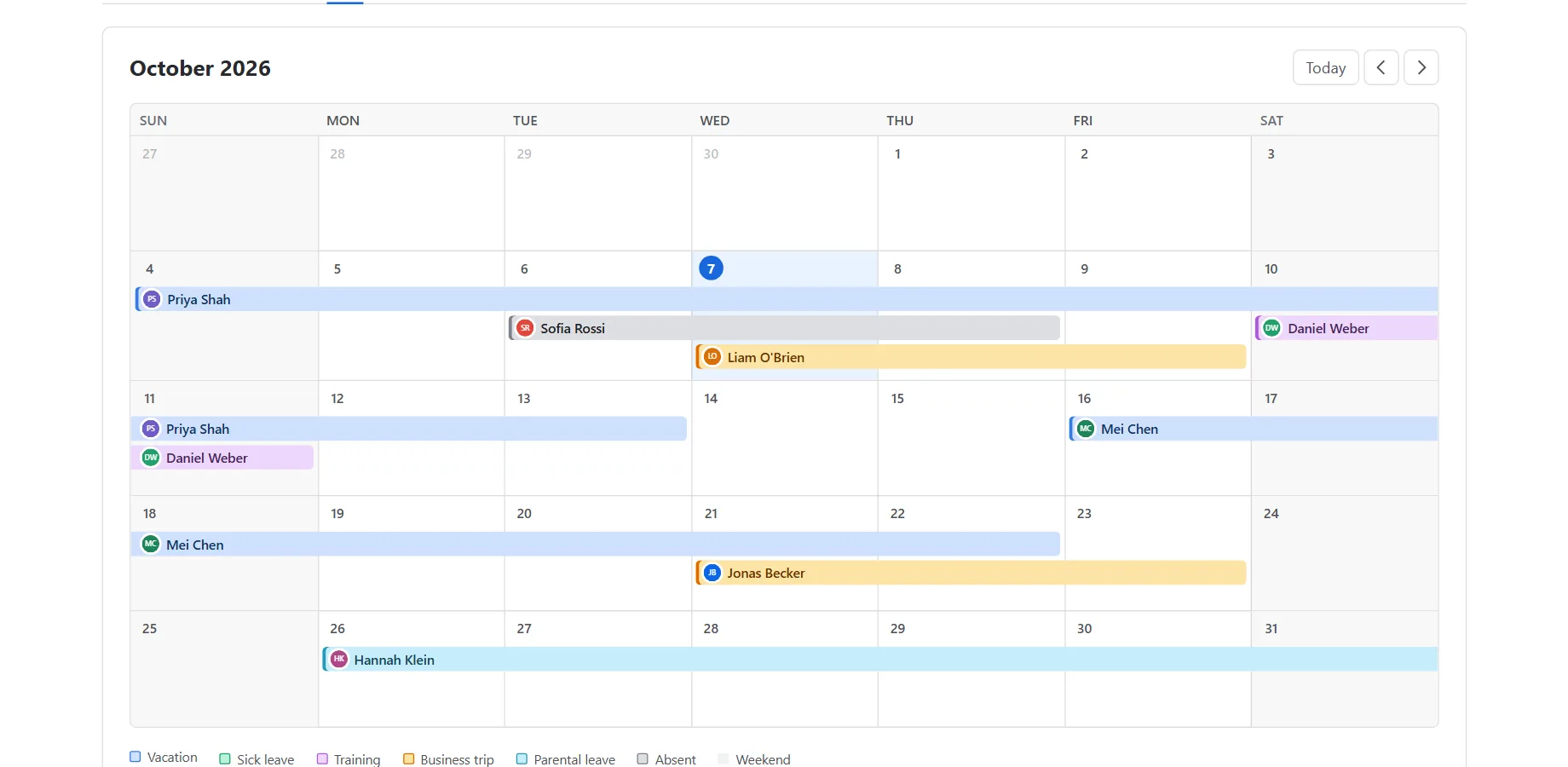
Team calendar: a month view showing which team members are away on which day, beside a list of upcoming and ongoing absences with type, dates, status and substitute.
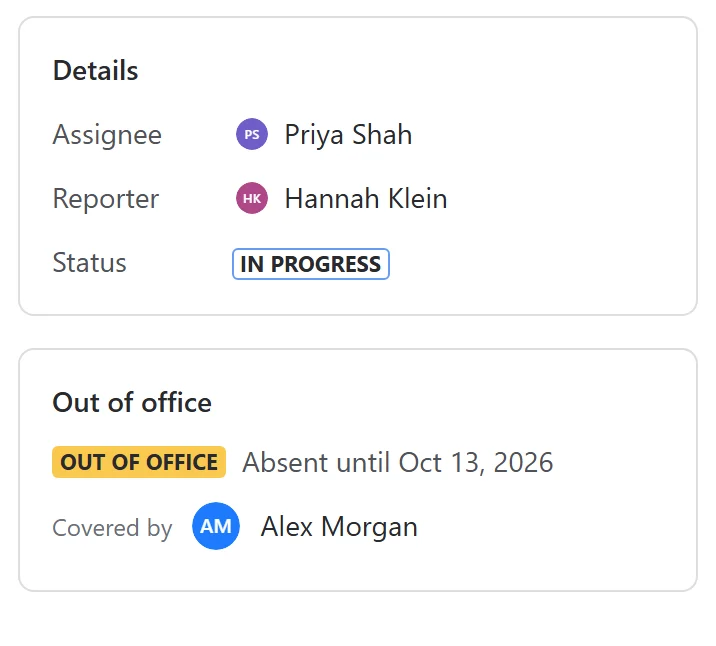
Out-of-office hint in the Jira issue view: the assignee is absent until a given date and covered by a named substitute.

What it does

Leave planned, work covered, everyone informed

Requests & approvals

Team members request time off from their personal settings. The approvers you configure decide, with a note if needed. Nobody approves their own absence.

  • Type, dates, substitute, optional reason
  • Approver pool, teams and Jira groups, members also from Atlassian Teams
  • Or no approval step at all

Substitute coverage

While an approved absence is active, open issues in the projects you choose go to the substitute. Once it has ended, the app hands them back.

  • Only in projects an administrator selects
  • Handed back when the absence ends
  • Gaps counted, never silent

Everyone knows who is away

A hint on the issue says who covers and until when. A team calendar shows who is out on which day — also as a dashboard gadget, or exported to your own calendar. If someone assigns work to an absent colleague, a warning comment follows.

  • Out-of-office hint in the issue view
  • Month calendar, dashboard gadget and .ics/.csv export
  • Warning comment customers never see

How it works

From request to hand-back, in four steps

An absence moves through a small set of clear states: pending, approved, active, completed. Each step does one thing, and the requester can cancel along the way.

  1. 1

    Request

    A team member picks an absence type, the dates, a substitute and, if they like, a private reason. The request appears in their own list immediately.

  2. 2

    Approve

    It goes to their team’s approvers or to the sitewide approver pool. An approver or a Jira administrator approves or declines it, optionally with a note. With approvals switched off, it is approved automatically.

  3. 3

    Cover

    Within the hour after midnight on the start date, in the reference timezone you set, the absence becomes active and the person’s open issues in the covered projects are reassigned to the substitute.

  4. 4

    Hand back

    Once the last day has passed, the issues the substitute still holds go back to the person and the absence is completed.

Try it: assign an issue to someone who is away

SUP-214 · VPN drops every hour

The issue is unassigned. You are about to assign it to Lena Fischer.

  • Lena Fischer · out of office until 24 Oct
  • Covered by · Jonas Weber

What the app does

  • Jira accepts the assignment. The app cannot stop it.
  • Shortly afterwards, the app posts a comment naming the end date and the substitute (internal on Jira Service Management requests).
  • It does so at most once per issue and absence, and only in the projects the app works in. The customer never sees it in the portal.
Forge has no way to block an assignment as it happens. The warning is reactive, by design.
A demo on this page. Nothing is assigned.

Features

Eighteen functions in six areas

Each function states beside its name whether it can change a Jira issue. Most of the app only stores absences in its own storage; only coverage and the warning comment touch issues.

No issue changes stores data in the app at most, never touches a Jira issueChanges issues reassigns issues or posts a comment, within the limits an administrator sets

Absence requests

Every Jira user requests time off from their own personal settings, and keeps track of it in one place.

  • Request an absenceNo issue changes
  • My absencesNo issue changes

Approvals & team view

The app’s global page: an approval queue for the people who decide, and a calendar of who is away.

  • Approval queueNo issue changes
  • Team calendarNo issue changes
  • Export and dashboard gadgetNo issue changes
  • Search for absent peopleNo issue changes

Substitute coverage

While an approved absence is active, open work goes to the substitute, in the projects an administrator chose, and comes back afterwards.

  • Automatic reassignmentChanges issues
  • Hand back on returnChanges issues

On the issue

Where most people notice an absence: on an issue assigned to someone who is out.

  • Out-of-office hintNo issue changes
  • Assign-to-absent warningChanges issues

Administration

One settings page under Jira settings → Apps, for Jira administrators only, with safe defaults so nothing blocks Jira before it is configured.

  • SettingsNo issue changes
  • Teams from AtlassianNo issue changes
  • Change historyNo issue changes
  • Built-in helpNo issue changes
  • Run activation nowChanges issues

Data privacy & retention

Keep personal data to what the work needs, and delete it when it is due. Everything stays in Forge storage for your site.

  • Retention periodNo issue changes
  • Delete all data of a personNo issue changes
  • Closed-account deletionNo issue changes

See all features

For service desks and larger teams

Built for teams where one absence stalls other people’s work

Jira has no manager field, and a service desk queue does not wait for anyone’s holiday. The app makes absences an explicit, accountable process instead of a chat message.

Approvers you configure, not a guessed hierarchy

A sitewide approver pool, optional teams with their own approvers, individual users or Jira groups. A team’s members can come from an Atlassian Team. Group membership is checked live at the moment of the decision.

Accountable at every step

Nobody can decide their own request, checked on the server against the stored record. Every settings change is logged with who made it and when.

No silent gaps

If the substitute cannot be assigned an issue, for example because they are not a member of that project, the issue is skipped and counted on the requester’s page rather than lost.

Background work that does not trip over itself

An hourly job finds the absences that are due and queues them; a background worker pages through the issues. The work is idempotent, so a second run never assigns or reverts twice.

A sensible rollout

  1. Absence typesKeep the starting set or define your own. Mark sensitive types.
  2. ApproversA small approver pool first; add teams, by hand or from an Atlassian Team, where groups decide for themselves.
  3. One covered projectStart coverage in a single project, for example one service desk.
  4. Reference timezoneSet the timezone that decides when a day begins, so absences start on the right day.
  5. Run now, then widenTest with “Run activation now”, then add further projects.

Read the getting-started guide →

Security & privacy

Absence data is personal data. It stays where it is.

The app runs entirely on Atlassian Forge. There is no vendor infrastructure in the path, and we as the vendor never receive your data.

QuestionAnswer
Where does the app run?Entirely on Atlassian Forge, inside your Atlassian tenant.
Does any data leave Atlassian?No. The app declares no external endpoints and makes no external calls. The only APIs it calls are Atlassian’s own.
Are there sub-processors?None. No data is sent anywhere.
Who sees an absence reason?By default the requester and an authorised approver. Never on an issue, never in a log.
What is stored?Absence records, the configuration, a configuration change history and, for at most 15 minutes, the members of linked Atlassian Teams, in Forge storage inside your tenant.
Can personal data be deleted?Yes. An administrator can delete all data of a person in one step, an optional retention period deletes finished absences, and data of accounts Atlassian reports as closed is deleted every week.
What happens on uninstall?Atlassian deletes the app’s storage: it is kept for 28 days, then permanently deleted. Warning comments and a small marker without personal data stay on the issues, as part of their history.

Security & privacy details

Pricing

Simple licensing through your Atlassian account

From 11 users

Per user

Priced on your Jira user tier: all Jira users, not only service desk agents. The Marketplace shows the price for your tier.

Without an active subscription

Paused

New requests, decisions, settings changes and the on-demand coverage run show a clear “subscription required” message instead of an error.

BillingThrough your existing Atlassian account. Atlassian is the merchant of record.
TermsThe standard Atlassian Marketplace end user agreement. No separate contract.
SupportMonday to Friday, business hours (CET). First response within one business day.

FAQ

Questions teams ask before installing

Who can request an absence?
Any Atlassian user on your site, from their own personal settings page. A request is always recorded for the signed-in user; nobody can file one on someone else’s behalf.
Who can approve requests?
A member of the sitewide approver pool, the requester’s own team approvers if your administrator set up teams, or any Jira administrator, but never the requester on their own request. Approvers can be individual users or Jira groups. With approvals switched off, requests are approved automatically.
How does substitute coverage work?
When an approved absence starts, the app reassigns the person’s open issues to the chosen substitute, in the projects an administrator selected and in which the person may assign issues themselves. Once the absence has ended, the issues the substitute still holds go back. Coverage never runs across all projects.
What if the substitute cannot be assigned an issue?
That issue is skipped and stays with the absent person. Their own page shows “Coverage incomplete” with the number of affected issues, so the gap is visible. Usually the substitute just needs to be assignable in that project.
Can the app stop an issue being assigned to someone who is away?
No, not before the fact: Forge cannot block an assignment as it happens. The app reacts with a warning comment shortly afterwards (internal on Jira Service Management requests), at most once per issue and absence, and the issue view shows the out-of-office hint.
Does it work in Jira Service Management, and without it?
Both. Service desk agent coverage is a first-class use case, and the app works the same in Jira Software. It uses only general Jira features, so there is nothing specific to Jira Service Management to set up; on service desk requests the warning comment is internal.
Can team members come from Atlassian Teams?
Yes. An administrator can link one of the app’s teams to an existing Atlassian Team; its members are then read from Atlassian and kept for at most 15 minutes. Approvers are still chosen in the app. If a linked team cannot be read, it counts as having no members and its requests go to the approver pool.
Can the absence reason stay private?
Yes. The reason is optional and treated as sensitive personal data. It is never shown on the issue hint, never written to logs, and by default visible only to the requester and an authorised approver. For types marked sensitive, such as sick leave, other people see only “Absent”. Who sees whose absences at all is a setting too: everyone, the same team, or approvers only.
How do we handle erasure requests and retention?
An administrator can delete all data of a person in one step, with or without an active subscription. An optional retention period, up to 3,650 days, deletes finished absences automatically. Once a week, the data of accounts Atlassian reports as closed is deleted.
Which languages does the app support?
English and German, following each user’s Atlassian profile language. The warning comment uses one site-wide language your administrator chooses. Absence-type labels you define are shown exactly as you entered them.
How do I get support?
Through our support portal, or by e-mail to support@vi2va.de. Please never send private absence reasons, passwords or tokens.

Plan the next holiday season before it starts

Set up absence types, approvers and one covered project in about 10 to 15 minutes. Jira keeps working while you do.